Calculator Guide
How to use the Hong Kong working day calculator
Last reviewed: October 2026
Step 1
Choose what to calculate
At-a-Glance
- Deadline finds a date by counting forward or backward
- Days between counts the days between two dates
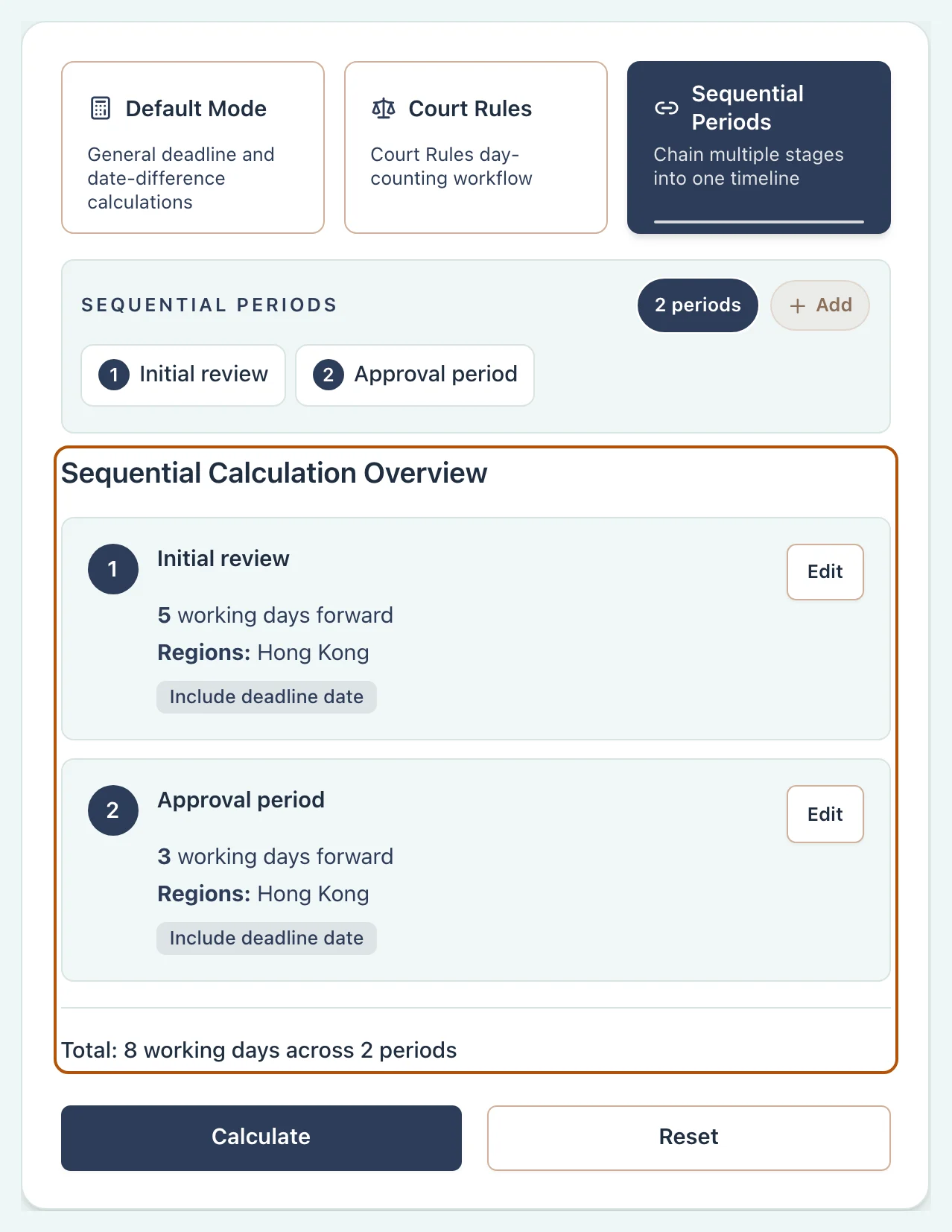
- Sequential links periods so one ends where the next starts
Choose one of the three options under Calculation type. The settings below change to suit your choice.
Deadline
Days between
Sequential
Check what your deadline requires
Check the rule, order, contract or policy for the date to count from, the length of the period and which dates to leave out. The calculator needs those details to give you the right answer.
Working-week choice
Decide whether Saturday counts
At-a-Glance
- Weekend treatment lets you choose which weekend days to skip
- Saturday and Sunday skips both weekend days
- Sunday only (SFBC contract definition) lets Saturday count
When you count working days with court rules off, choose Weekend treatment to match your rule or contract. Calendar days include weekends, so this field is hidden for those counts.
Skip Saturday and Sunday
Let Saturday count
Follow your contract's working-week definition
SFBC refers to the Standard Form of Building Contract. Choose its Sunday-only option only when that definition applies. General Holidays are still left out of the working-day count with either weekend option.
Try a count that includes Saturdays
Everyday calculations
Count working days or calendar days
At-a-Glance
- Use Deadline when you know the start date and period
- Use Days between when you know both dates
- Choose whether the first and last dates count
For an ordinary Deadline, leave Use court rules off. Choose Days between if you already know both dates. Then work through the settings below.
 Open full size
Example: five Hong Kong working days
Choose Deadline, Working days and Forward, then enter the starting date and 5 in Number. Set Weekend treatment and Dates to include to match your rule or contract. After calculating, open Calculation details and Non-working dates to check the settings and dates used.
Does Monday count as day one?
Start on Monday 2 March 2026 and add three working days, skipping Saturday and Sunday. With Include the start date off and Include the deadline date on, Thursday 5 March is day three. Include the start date too, and Wednesday 4 March is day three.
If both checkboxes are off, the deadline follows the third counted day. The result is Friday 6 March.
Example: one calendar month
Choose Deadline, Forward and Calendar days. Enter 15 September 2026 as the Start date, set Number to 1 and Unit to Months, and tick both date-inclusion checkboxes. The result is Wednesday 14 October 2026. Weekends and General Holidays count within that calendar month.
Try a calendar-month count
Court rules
Calculate a court deadline
At-a-Glance
- Choose Deadline, then turn on Use court rules
- Periods of 7 days or less use working days; longer periods use calendar days
- Review How this will be counted before calculating
Choose Deadline and turn on Use court rules. Check that the High Court and District Court rules shown apply to your deadline. The calculator sets the counting method and date-inclusion choices according to those rules.
 Open full size
Check how the days will be counted
Below the inputs, How this will be counted shows the court rule, counting method, direction and dates to include. The Closed-day rule explains what happens if the calculated deadline falls on a day the court is closed. Review the summary after changing the number of days or direction.
Court rules set the first- and last-date choices for you. Check the applicable rule, any special order and the filing method before relying on the result. Check actual Judiciary arrangements if a gale warning or Black Rainstorm affected the period.
Why eight days can finish before seven
Start on Wednesday 7 January 2026 and choose Forward. A seven-day court filing count uses working days and ends on Friday 16 January. Change only Number to 8 and the count uses calendar days, ending on Thursday 15 January. The longer count finishes earlier because it includes the weekend. Check the counting method as well as the date.
Try a court deadline
Related Resources
A complete short-period court example
What happens when weather disrupts a court day
Official Hong Kong e-Legislation text
Official Hong Kong e-Legislation text
Official practical summary of the days excluded from periods of 7 days or less
Topic
Use the optional August exclusion
Leave out August when the applicable High Court pleading rule requires it.
Topic
Choose closures and link periods
Choose any extended Lunar New Year closure and set up periods that follow each other.
Results
Check what the result actually counted
At-a-Glance
- The headline gives the result date or the number of days
- The timeline and calendar show how the period runs
- Non-working dates lists the individual dates in the period
Check the result date or day count, then open the details to make sure the calculation used the settings you intended.
 Open full size
1. Open Calculation details
2. Check the timeline and calendar
3. Open Non-working dates
4. Check court adjustments
Select Export to PDF to keep a record of the result and its settings. Check that the selected rules apply to your situation before using or sharing it.
Practise reading a result
Topic
Troubleshooting
Check common reasons for a different date or an unexpected count.